
Revised: June 30, 2026
I have used dual monitors for office work for more than ten years. At first, I thought of a second monitor as a simple convenience: one more screen, a bit more space, and fewer windows to minimize. After using dual monitors for a long time, however, I now see them as something closer to a productivity system. For writing, research, Excel work, stock monitoring, email, and messaging, dual monitors can genuinely change the way you work.
That does not mean the best setup is always two identical monitors placed side by side. Some people are better served by two 24-inch monitors. Others will be much happier with a 27-inch main monitor and a 24-inch secondary monitor. In some cases, a single 32-inch monitor can be more efficient than a traditional dual-monitor setup. The important question is not “How large should the screen be?” but “How do I actually divide my work across screens?”
My short conclusion is this: for general office work and document-heavy workflows, the most balanced setup is usually a 27-inch main monitor plus a 24-inch secondary monitor. If you work heavily with Excel or wide datasets, a 27-inch QHD monitor or a 32-inch QHD monitor is worth considering. If your work is mostly market monitoring, dashboards, or stock trading screens, multiple 24-inch monitors can still make a lot of sense.
If Your Monitor Is More Than Seven Years Old, Consider Replacing It
If you are still using a budget office monitor bought around seven years ago, it may be time to think about replacing it. LED-backlit LCD monitors can last a long time, and many old monitors still function perfectly well. But “not broken” and “comfortable by today’s standards” are very different things.
Older monitors often fall behind in brightness, color quality, viewing angle, and eye comfort. This matters more than people expect, especially if you look at the screen all day. A monitor is not as exciting as a CPU or a graphics card, but it is the device your eyes meet every working hour. Among office equipment upgrades, a better monitor can deliver surprisingly high practical value.
Better Color and Image Quality
Modern office monitors are much better than older low-cost models in terms of color and image quality. Color gamut, brightness, contrast, panel uniformity, and coating all affect the experience. When you compare an older monitor with low sRGB coverage to a newer monitor closer to sRGB 100%, the difference in websites, photos, videos, and presentations is easy to notice.
An office monitor does not need to be a professional color-grading display. Still, if you often watch YouTube, Netflix, web images, or presentation materials, a dull and washed-out screen can become tiring. A clearer and more stable image makes work feel easier. If you want more background on color gamut, the Korean article on NTSC 45% monitors is also worth reading.
Eye Comfort Matters More Than Specifications Suggest
Many recent monitors include flicker-free backlighting, low blue light modes, automatic brightness adjustment, and better anti-glare coatings. If you move from an older office monitor to a newer one, you may immediately feel that the screen is easier on the eyes. That is not only a psychological effect. Flicker, brightness uniformity, glare, and color temperature all affect eye fatigue.
I felt this clearly when using the BenQ GW2780 series. On paper, the specifications are not extraordinary: a 27-inch IPS panel, FHD resolution, 60Hz refresh rate, and around 250 nits of brightness. But in long document-writing sessions, the screen feels stable and comfortable.
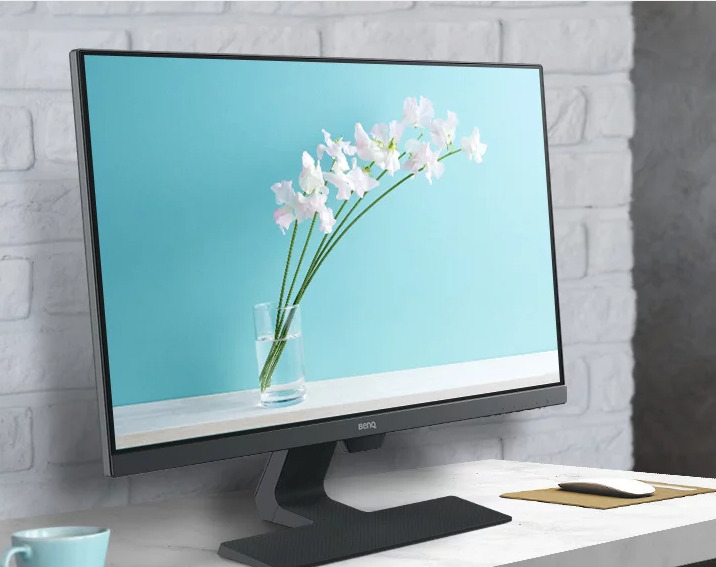
If you often work at night, room lighting matters as well. A bright monitor in a dark room can quickly become tiring. In that case, a monitor light bar can also improve the working environment.
Start With Your Workflow, Not the Monitor Size
The most common mistake when choosing a dual-monitor setup is starting with monitor size. Instead, start with the type of work you do. Do you mostly monitor dashboards? Do you write reports? Do you use wide Excel sheets? Do you frequently attend video calls while sharing documents? The best setup depends on the workflow.
- Document writing: A 27-inch main monitor plus a 24-inch secondary monitor is usually the safest choice.
- Excel and data work: A 27-inch QHD or 32-inch QHD monitor is more useful.
- Stock trading and dashboards: Multiple 24-inch monitors remain practical.
- Laptop-centered work: USB-C display output, Thunderbolt, or docking support becomes important.
- Frequent video calls: Webcam position and monitor height matter more than expected.
Dual 24-Inch Monitors: Strong for Monitoring
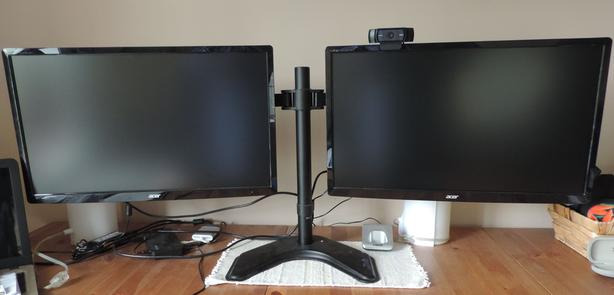
A dual 24-inch monitor setup was once very common in financial firms and trading desks. One screen could show prices, another could show orders or news, and another could show Excel or messaging tools. This setup works well when each monitor has one dedicated job.
The main advantages are cost and space efficiency. FHD 24-inch monitors are still inexpensive, and several of them can fit on a desk more easily than larger displays. If you need three or four screens, 24-inch monitors may be more realistic than 27-inch models.
The drawback is that a 24-inch monitor can feel small as the main work screen. If you want to place two documents side by side, or read a PDF while writing a report, it may feel cramped. A wide row of small monitors can also make you turn your neck too often. For that reason, dual 24-inch monitors are better for observation and monitoring than for heavy writing.
Dual 27-Inch Monitors: The Standard for Document Work
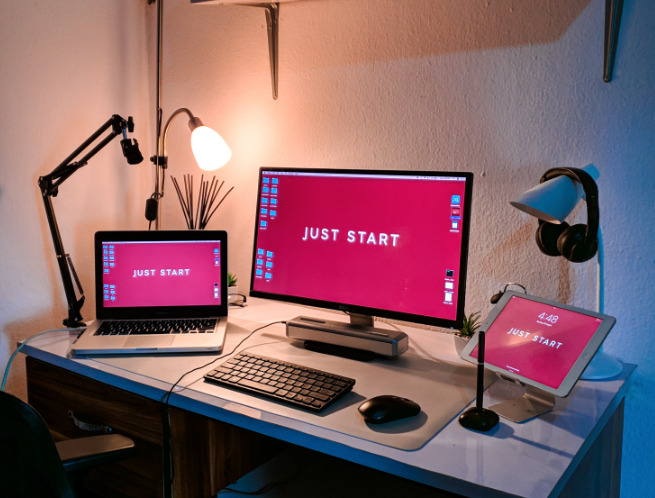
At 27 inches, splitting windows inside the screen becomes much more comfortable. You can place a PDF on the left and write a document on the right, or keep a browser and a Word document side by side. You can check reference material mostly with eye movement rather than constantly turning your head.
Dual 27-inch monitors work well for office workers, analysts, report writers, bloggers, developers, and planners. Prices have also come down enough that many 27-inch models are not dramatically more expensive than 24-inch ones. The only caution is desk width. Two 27-inch monitors side by side take more horizontal space than many people expect. If your desk is narrow, a 27-inch plus 24-inch combination may be more practical.
Resolution is a matter of preference. A 27-inch FHD monitor gives large, comfortable text, but people sensitive to pixel density may find it a little rough. A 27-inch QHD monitor offers a better balance between text sharpness and working space, making it one of the easiest recommendations in 2026. A 4K monitor is sharper, but scaling, GPU load, and price should all be considered.
32-Inch Monitors: Excellent for Excel and Data Work
A 32-inch monitor is attractive if you want a large workspace. It is especially useful for wide Excel spreadsheets, datasets, or workflows that place several windows on one screen. A good 32-inch QHD or 4K monitor can create a workspace that rivals a traditional dual-monitor setup.
However, a 32-inch monitor requires enough desk depth and viewing distance. If the screen is too close, you will have to move your head to see the left and right edges. On a small desk, that can become tiring. If you choose a 32-inch or larger monitor, consider using a monitor arm and a deeper desk.
Another issue is single-window use. If you open one web page or one document full-screen, a lot of horizontal space is wasted. Large monitors shine when you actively use window splitting. Windows Snap, PowerToys FancyZones, or similar tools can make a 32-inch screen much more useful.
Why a 27-Inch + 24-Inch Setup Is the Most Balanced
For document-heavy office work, I most often recommend a 27-inch main monitor and a 24-inch secondary monitor. Use the 27-inch screen for reports, browsing, Excel, and research. Use the 24-inch screen for messaging, email, music, calendar, and reference material.
The strength of this setup is balance. It takes less space than two 27-inch monitors, but gives you a much better main work screen than two 24-inch monitors. It is also cost-efficient. If you already own a 24-inch monitor, adding one new 27-inch monitor can deliver a major upgrade.
Still, try to match height and color tone between the two monitors. If one screen is too bright and the other looks yellow, it becomes distracting. Choosing similar panel types or using the same brand can help. A monitor arm also makes it easier to align height and angle.
Monitor Brands and Panel Choice
Entry-level office monitors from LG and Samsung are generally safe choices. Even their lower-priced models tend to provide acceptable quality. If you want better value, AOC, Philips, and BenQ are also worth considering. After-sales service and exchange convenience may differ by brand and retailer, so that should also be considered.
For office work, IPS is usually the safest panel type. It offers stable viewing angles and consistent color, and it works well when several people look at the screen together. VA panels offer stronger contrast and attractive pricing, but some models may show more motion smearing or viewing-angle limitations. For writing and general office work, start with IPS unless you have a specific reason to choose VA.
What to Check Before Building a Dual-Monitor Setup
1. Output Ports on Your Laptop or PC
If you want to use dual monitors with a laptop, check the output ports first. Some laptops have only one HDMI port. Some have USB-C, but the USB-C port does not support display output. Not every USB-C port can drive a monitor. You need to check for DisplayPort Alt Mode, Thunderbolt, or USB4 support.
This is a surprisingly common source of confusion. A USB-C port may charge the laptop but fail to output video. If you plan to connect monitors through USB-C, first read this guide on what to check before using a USB-C port for monitor output.
2. Graphics Capability and Refresh Rate
Some older laptops can connect to external monitors but cannot properly support QHD or 4K at 60Hz. If a monitor runs at 30Hz, mouse movement feels less smooth and even document work can feel uncomfortable. When planning a dual-monitor setup, check refresh rate as well as resolution.
For office work, 60Hz is usually enough. If you do not play games, 144Hz is not essential. Resolution, text clarity, eye comfort, and stand adjustability usually matter more.
3. FHD, QHD, or 4K Resolution
For 24-inch monitors, FHD is still fine. For 27-inch monitors, FHD is usable, but QHD is generally better balanced. For 32-inch monitors, QHD or 4K makes more sense. Higher resolution gives you more workspace, but text can become smaller and scaling may be needed.
If your work is mostly simple document editing, FHD may be enough. But if you often keep Excel, PDFs, browsers, and messaging apps open at the same time, QHD provides a meaningful productivity benefit. 4K is sharper, but scaling and cost should be considered.
4. Monitor Height and Desk Depth
Monitor height is more important than it first appears. If the top edges of two monitors are not aligned, eye movement becomes less comfortable. If the included stands do not allow proper height adjustment, use a riser or monitor arm. For two 27-inch monitors, a monitor arm can also save desk space.
Desk depth matters as well. A large monitor placed too close can make your neck and eyes tired. A 27-inch monitor is usually more comfortable with roughly 60cm or more of viewing distance. A 32-inch monitor needs even more space. If your desk is small, do not assume that bigger is always better.
Fixing the Problem Where the Mouse Will Not Move to the Other Monitor
When you first connect dual monitors, the mouse may not move in the direction you expect. This usually means the display arrangement in Windows does not match the physical layout on your desk.
In Windows, right-click the desktop and open Display settings. Click Identify to show the number of each monitor, then drag the monitor rectangles so they match the real positions on your desk.
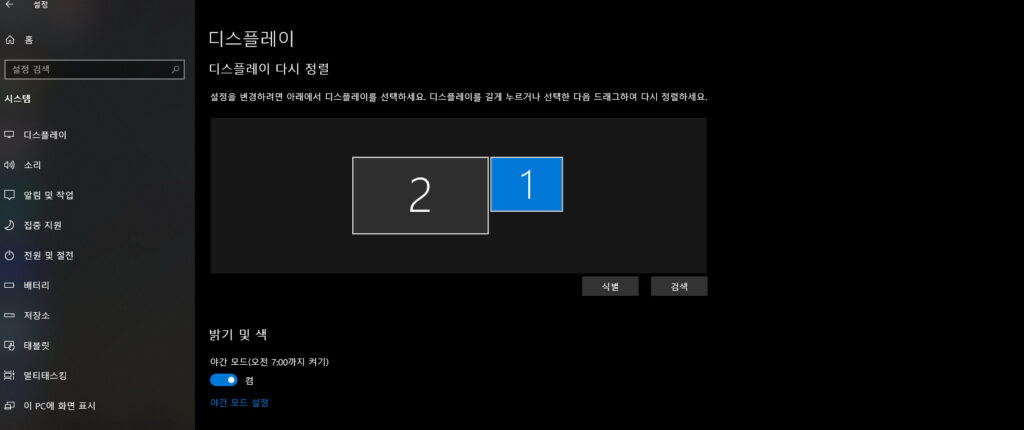
For example, if monitor 2 is physically on the left but Windows thinks it is on the right, your mouse will move in the wrong direction. Fixing this setting makes the dual-monitor experience much more natural.
Recommended Office Monitor Setups
For office work, the following setups are a good starting point.
- Best all-around office setup: 27-inch QHD main monitor + 24-inch FHD secondary monitor
- Low-cost setup: Two 24-inch FHD monitors
- Writing and research: Two 27-inch monitors, or 27-inch + 24-inch
- Excel and data work: 32-inch QHD monitor, or 32-inch plus a secondary monitor
- Laptop-centered setup: USB-C display output monitor or docking station
- Small desk: One 27-inch main monitor plus the laptop screen as a secondary display
Personally, I find the 27-inch main plus 24-inch secondary setup to be the best default. If you are buying everything new, 27-inch QHD plus 24-inch FHD is a good balance. If you already have a 24-inch monitor, adding one 27-inch monitor can be enough to transform the workspace.
Conclusion: Workflow Matters More Than Screen Size
A well-planned dual-monitor setup can genuinely improve productivity. You can write a report while reading a PDF, monitor email while working in Excel, or keep messaging and calendar tools open without constantly switching windows. Reducing window management alone can make work feel smoother.
But bigger is not always better. Two 24-inch monitors are good for monitoring but may feel small for writing. A 32-inch monitor is excellent for Excel but can be tiring on a shallow desk. The right setup is the one that fits your workflow.
If you are building your first serious office setup, start with a 27-inch main monitor. Add your existing 24-inch monitor as a secondary display, or add another 27-inch monitor later if your desk and budget allow it. A monitor is a long-term tool that you look at all day. For that reason, a good office monitor setup is one of the more rational productivity investments you can make.