
Revised: June 30, 2026
Using a USB-C Port for Monitor Output: The First Thing to Check
One of the most common mistakes people make when setting up dual or triple monitors with a laptop is assuming that “if the laptop has USB-C, it must support monitor output.” Unfortunately, USB-C is not that simple. The port may look exactly the same, but one USB-C port may support only charging, another may support only data transfer, and another may support external display output.
The short answer is this: to use a USB-C port for monitor output, the port must support DisplayPort Alt Mode, Thunderbolt, or USB4 display output. If the specification simply says “USB-C port,” that is not enough. Buying a hub, dock, or monitor based only on the shape of the port can easily lead to disappointment.
Many modern laptops have only one HDMI port, and some thin laptops no longer include HDMI at all. That means anyone trying to build a work-from-home or office dual-monitor setup often ends up using a USB-C hub, a docking station, a USB-C to HDMI cable, or a USB-C monitor. The important point is that all of those devices depend on what the laptop’s USB-C port can actually do.
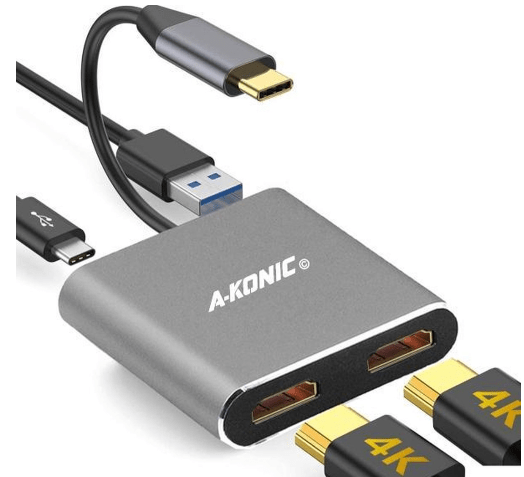
USB-C Is the Shape; the Features Are Separate
USB-C is the connector shape. It is small, reversible, and convenient. It can carry power, data, and video through a single port. But that does not mean every USB-C port includes every possible function.
A simple way to think about it is this: USB-C is the door shape, but what sits behind the door differs by device. One laptop’s USB-C port may behave almost like a phone charging port. Another may support high-speed data transfer. Another may support monitor output. They look the same from the outside, but the wiring and controller behind them are different.
This is why laptop specifications can be confusing. You may see terms such as USB-C 3.2 Gen 1, USB-C 3.2 Gen 2, USB4, or Thunderbolt 4. A higher-looking number does not always mean display output is included. Conversely, a fairly ordinary-looking USB-C port can drive an external monitor if it supports DisplayPort Alt Mode.
What Is DisplayPort Alt Mode?
The most important phrase to look for is DisplayPort Alt Mode. “Alt Mode” stands for Alternative Mode. It allows a USB-C port to carry a DisplayPort video signal instead of just ordinary USB data.
If your laptop’s USB-C port supports DisplayPort Alt Mode, you can connect an external monitor through a USB-C to HDMI adapter, a USB-C to DisplayPort cable, or a USB-C hub. If the port does not support this feature, even an expensive hub will not magically make the monitor work. The hub may power on, a USB flash drive may be recognized, but the HDMI port on the hub may remain completely useless.
So when buying a laptop for a dual-monitor setup, do not stop at “USB-C port included.” Look for phrases such as USB-C with DisplayPort, DisplayPort over USB-C, DP Alt Mode, or USB-C video output in the official specifications.
Thunderbolt and USB4 Are Stronger Options
Thunderbolt 3 and later versions use the USB-C connector shape. Thunderbolt 3 and Thunderbolt 4 provide up to 40Gbps of bandwidth and are excellent for video output, high-speed data transfer, charging, and docking stations. As of 2026, many premium laptops include Thunderbolt 4 or USB4 ports.
If your laptop has Thunderbolt 4, a typical office dual-monitor setup becomes much easier. You can connect monitors, keyboard, mouse, Ethernet, external storage, and charging to a single docking station, then connect the laptop with just one USB-C cable. For people who move between home and office, this is one of the cleanest setups available.
Thunderbolt 5 offers even higher bandwidth, but it is still mainly found on higher-end laptops and accessories. For ordinary office dual-monitor use, Thunderbolt 4 or USB4 is already more than enough in many cases. The key rule is simple: Thunderbolt is generally a safe sign, but ordinary USB-C must be checked carefully for display output support.
How to Check the Mark Next to the USB-C Port
If there is a small symbol next to the USB-C port, it can be a useful clue. A DisplayPort-style “D” mark or a lightning-shaped Thunderbolt symbol usually suggests that display output is supported. However, manufacturers do not always use the same symbols, and many recent laptops omit port markings entirely.

If the symbol only indicates charging or power, the port may be mainly for power delivery. If it only shows data speed labels such as SS, 5Gbps, or 10Gbps, it may support data transfer but not necessarily video output.

The safest method is to read the manufacturer’s official specification sheet. If the spec says something like “USB-C 3.2 Gen 2 with DisplayPort 1.4 and Power Delivery,” that is a good sign. If it simply says “USB-C 3.2 Gen 1” and says nothing about video output, you should assume monitor output may not work until proven otherwise.
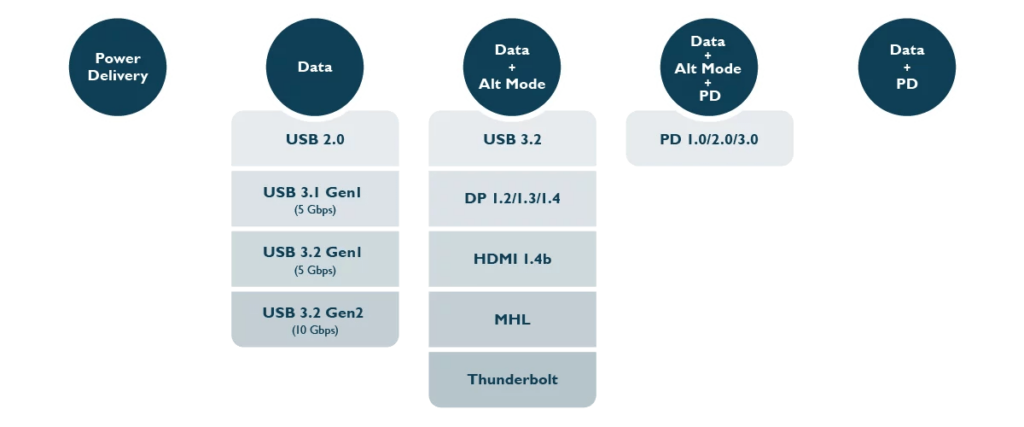
Source: BenQ
Four Things to Check Before Buying a Hub
USB-C monitor output can fail for more reasons than just the laptop port. You also need to check the hub, cable, monitor resolution, and operating system limitations.
- Laptop USB-C port: Check whether it supports DisplayPort Alt Mode, Thunderbolt, or USB4.
- Hub output specification: Check whether it supports 4K 30Hz, 4K 60Hz, or true dual-monitor output.
- Cable specification: A charging-only USB-C cable may not carry video at all.
- Monitor resolution: Two FHD monitors and two 4K monitors require very different bandwidth.
Some inexpensive USB-C hubs have two HDMI ports but do not actually support two independent extended displays. They may support only one monitor, or they may mirror the same screen on both outputs. Look for terms such as MST, extended display, dual monitor, and 4K 60Hz in the product description. MacBooks also have model-specific external display limits, so Mac users need to check their exact model carefully.
Common Problems in Dual and Triple Monitor Setups
Laptops have become powerful enough for office work, stock monitoring, blogging, research, and even fairly heavy multitasking. The problem is often not performance, but connection. Even a powerful CPU cannot help if the laptop lacks the right display output paths.
The most common problem is trying to use one HDMI port and one USB-C port at the same time, only to discover that the USB-C port does not support video output. In that case, the HDMI monitor works, but the second monitor connected through the USB-C hub shows nothing.
The second problem is resolution and refresh rate. Two FHD monitors may work fine, but a 4K monitor may be limited to 30Hz or may flicker. To run 4K at 60Hz, the laptop port, hub, cable, and monitor all need to support it. If one part of the chain is weaker, the whole setup is limited.
The third problem is power. If you connect monitors, keyboard, mouse, external SSD, and Ethernet through one USB-C hub, the hub may need a meaningful amount of power. If you also want to charge the laptop through the same cable, check Power Delivery, or PD charging, support carefully.
MacBooks and Windows Laptops May Have Different External Display Limits
Windows laptops vary by manufacturer, CPU, GPU, and port configuration. Many Intel integrated graphics laptops can handle dual monitors well, depending on generation and port support. Older laptops, however, may have limits with 4K 60Hz output or multiple external displays.
MacBooks require extra care. Apple Silicon MacBooks have different external display limits depending on the chip. Some base M1, M2, and M3 MacBooks have officially supported only one external monitor, while Pro and Max models support more. Before buying a hub, MacBook users should check the official external display support for their exact model.
Some people use DisplayLink adapters to work around these limits, but DisplayLink is different from ordinary DisplayPort Alt Mode. It requires separate software, and there may be trade-offs in latency, image quality, or DRM-protected video playback. It can work for office documents, but it is not a perfect solution for everyone.
A USB-C Monitor Can Make the Setup Much Simpler
More monitors now include USB-C input. A USB-C monitor can carry video and charge the laptop through a single cable. If the monitor also has a built-in USB hub, you can connect your keyboard and mouse to the monitor and keep the desk much cleaner.
Still, there are details to check. Does the USB-C port on the monitor support video only, or does it also charge the laptop? Is the charging output 45W, 65W, or 90W? A high-performance laptop may slowly drain its battery if the monitor provides only 45W. For many office ultrabooks, 65W is usually acceptable. For more powerful laptops, 90W or higher is safer.
Pre-Purchase Checklist
If you want to connect a monitor through USB-C, check the following in order.
- Check whether the laptop’s USB-C port supports DisplayPort Alt Mode, Thunderbolt, or USB4.
- Decide how many monitors and what resolution you want: two FHD monitors, two QHD monitors, or one 4K monitor.
- Check the HDMI or DisplayPort output specifications of the hub or docking station.
- Make sure the cable supports video output and the resolution/refresh rate you need.
- If you want one-cable charging, check the PD charging output.
- If you use a MacBook, check the exact number of external displays supported by your model.
Conclusion: You Need a USB-C Port That Supports Video Output
USB-C is very convenient, but it is also one of the most confusing modern ports. The connector shape may be the same, but the functions behind it can be completely different. That is why you should not judge a laptop or hub by the existence of a USB-C port alone.
The key rule is simple: to output a monitor through USB-C, the port must support DisplayPort Alt Mode, Thunderbolt, or USB4 display output. A DisplayPort or Thunderbolt icon next to the port can be a useful hint, but the safest answer is always in the manufacturer’s official specification sheet.
For a stable dual or triple monitor setup, the laptop, hub, cable, and monitor all need to match. If even one part is under-specified, the monitor may not appear, 4K may be limited to 30Hz, or the second screen may only mirror the first.
For office work, this checking process is worth the effort. Once configured properly, a laptop can provide a desktop-like workspace. For document work, stock monitoring, research, blogging, and any task that benefits from multiple windows, USB-C monitor output can make a real productivity difference.